First Login
How to sign in to Fateh ERP for the first time and get familiar with the login screen.
You'll need the URL to your Fateh ERP site and the credentials your administrator sent you. The URL looks like yourcompany.fateherp.com.
Opening the login page
Open your browser and go to your Fateh ERP URL. You'll land on the login screen:
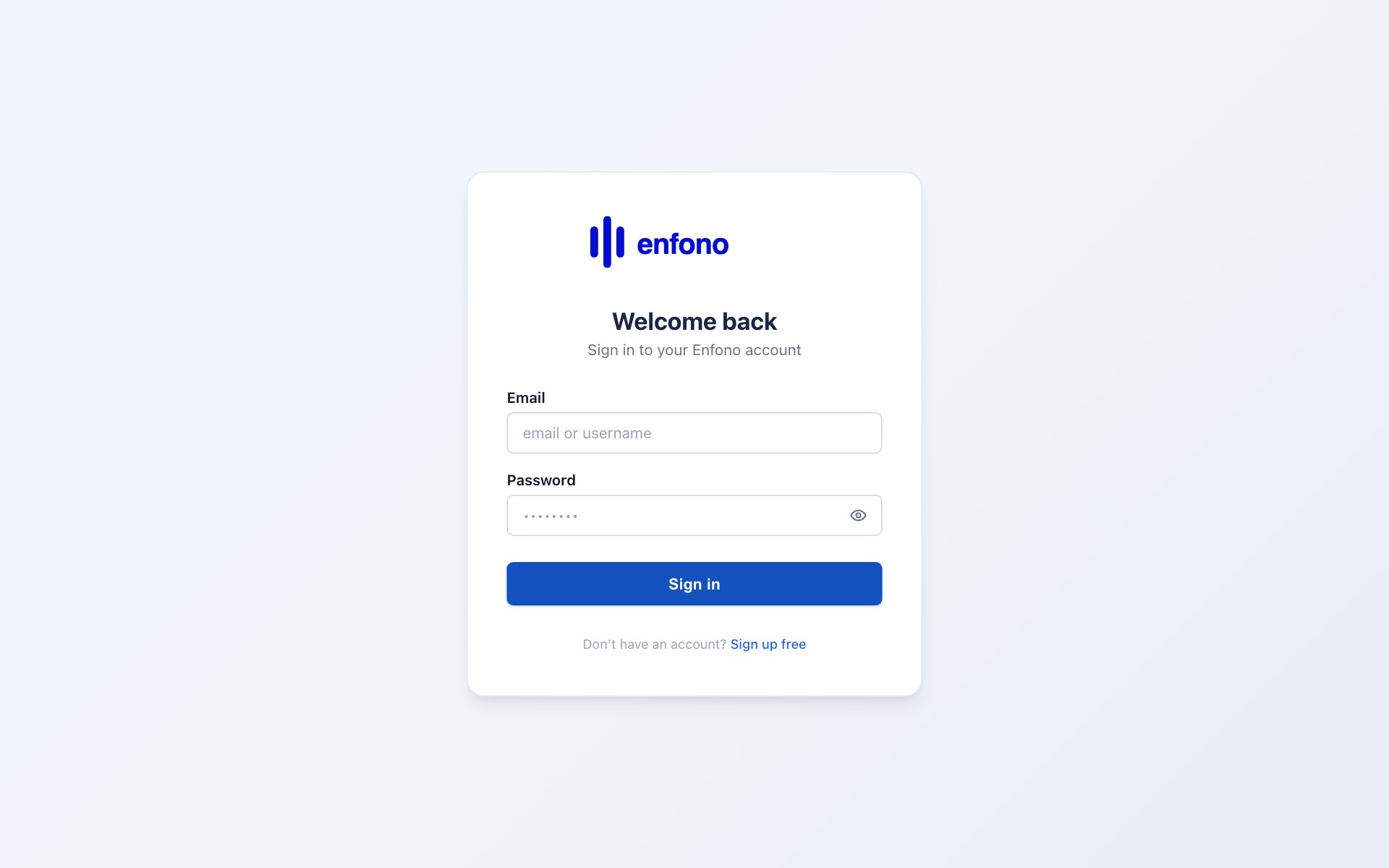
Login screen — enter your email and password
The login page is clean and simple. It has two fields:
- Email / Username — use the email address or username your administrator gave you
- Password — the password from your welcome email (you'll be prompted to change it on first sign-in)
Signing in
1
Enter your email or username
Type the email address or username provided by your system administrator. For most setups this is your work email.
2
Enter your password
Type the temporary password from the welcome email. Passwords are case-sensitive.
3
Click Sign In
Press the Sign In button or hit Enter. Fateh ERP will verify your credentials.
4
Change your password (first time only)
On your very first login you'll be asked to set a new, permanent password. Choose something secure and note it down.
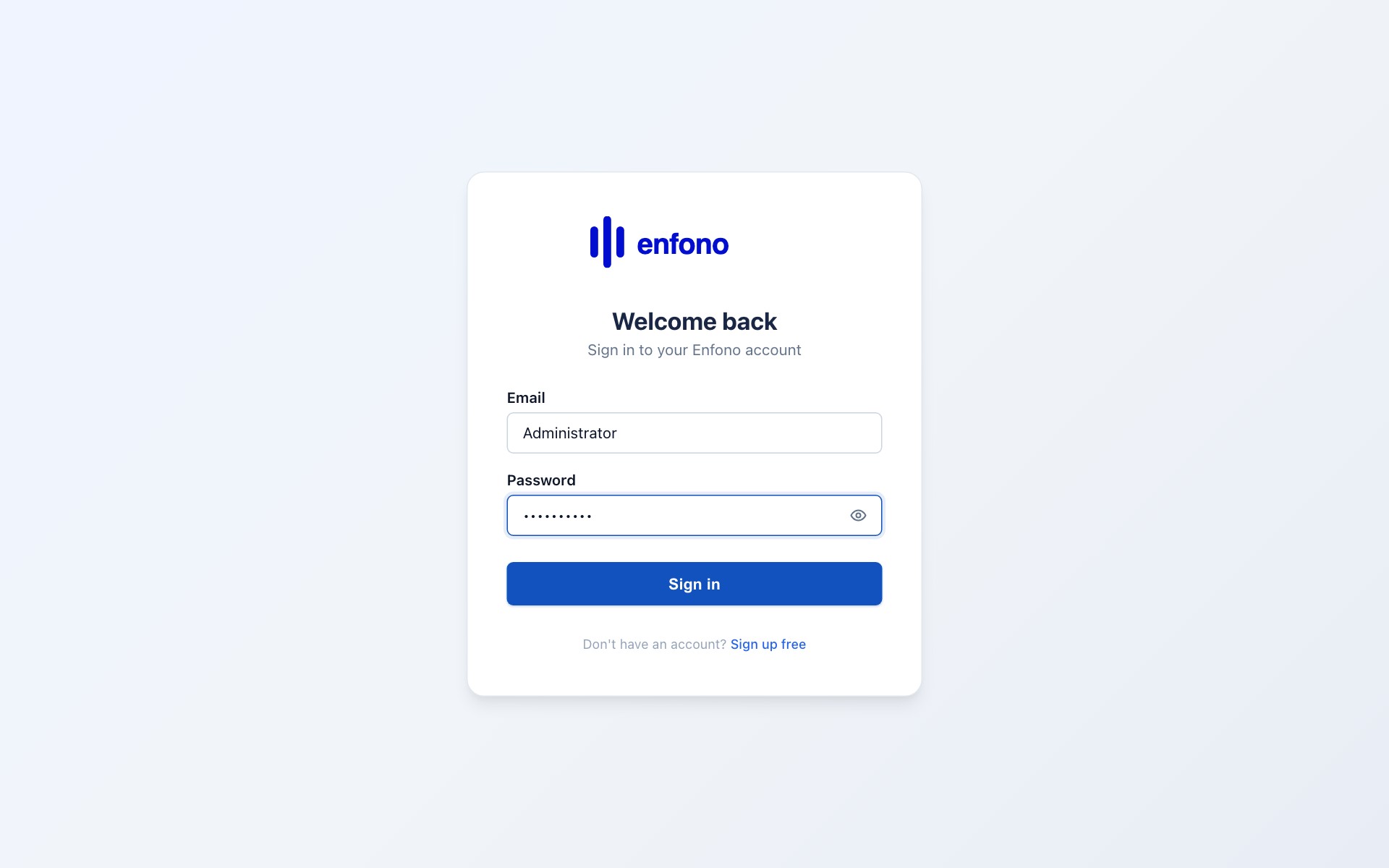
Login form with credentials entered — ready to sign in
After login — the Dashboard
Once signed in you land on the Dashboard. This is your home base in Fateh ERP:
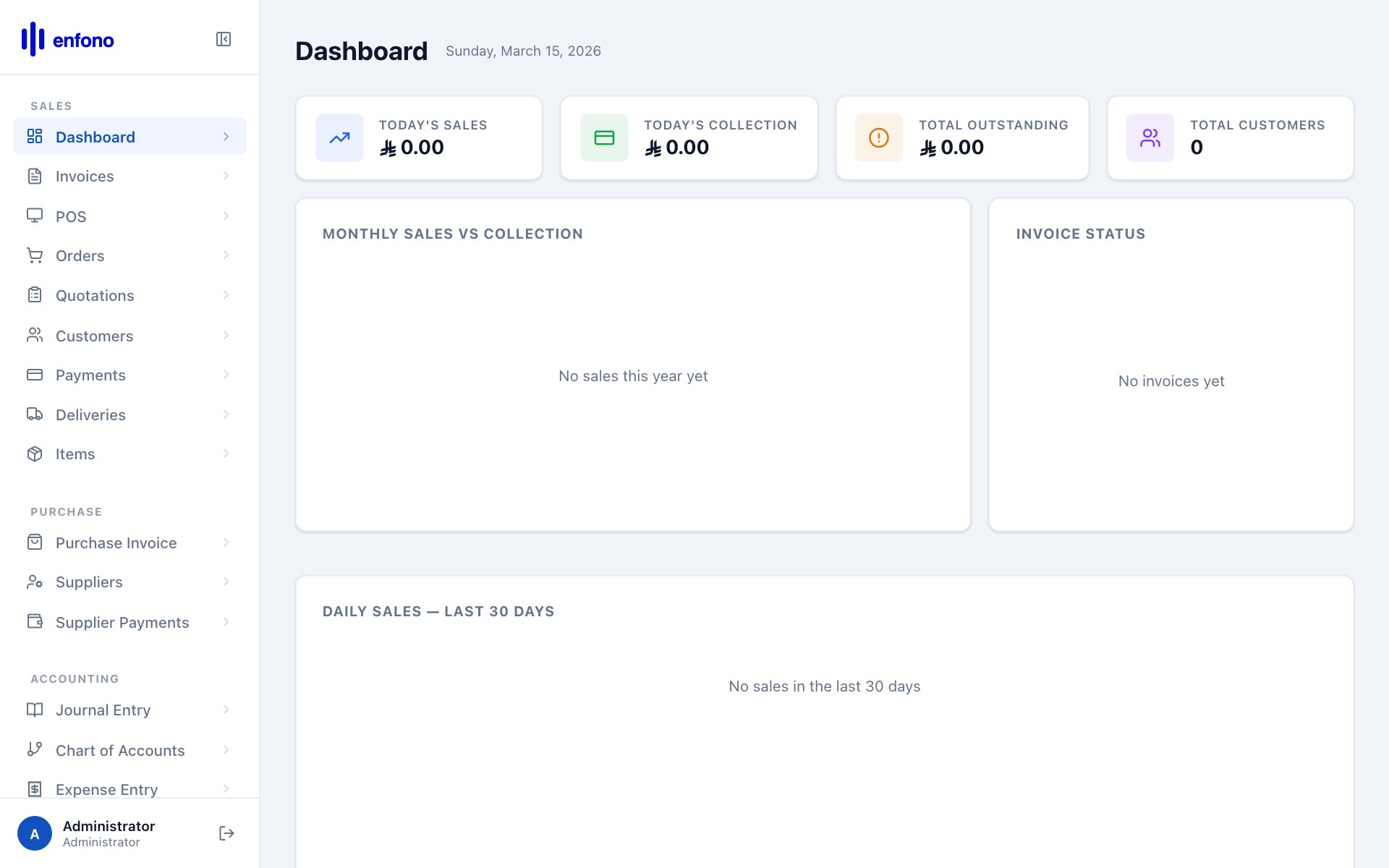
Dashboard — your central overview after signing in
The dashboard shows:
- Summary cards — quick totals for unpaid invoices, overdue amounts, and this month's sales
- Left sidebar — the main navigation menu to access every module
- Recent activity — the latest transactions created in the system
If you see a blank screen or get a 404 after login, clear your browser cache and try again. If the problem persists contact your administrator.