Quotations
Send professional price quotes to customers before they place an order. Approved quotations can be converted to Sales Orders or Sales Invoices in one click.
Quotations list
Go to Selling → Quotations:
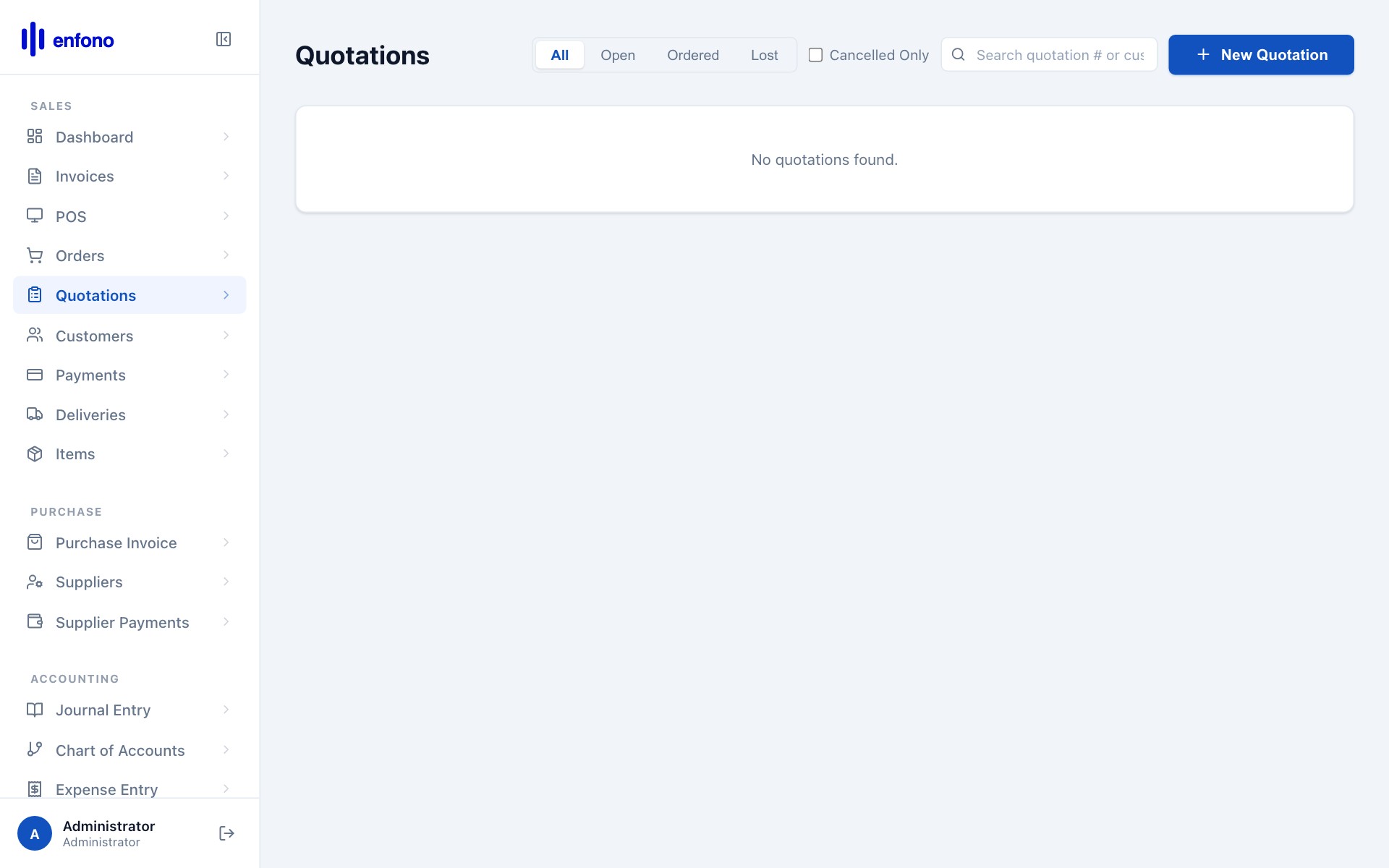
The list shows each quotation's number, customer, date, total amount, and current status (Open, Ordered, Lost).
Creating a new quotation
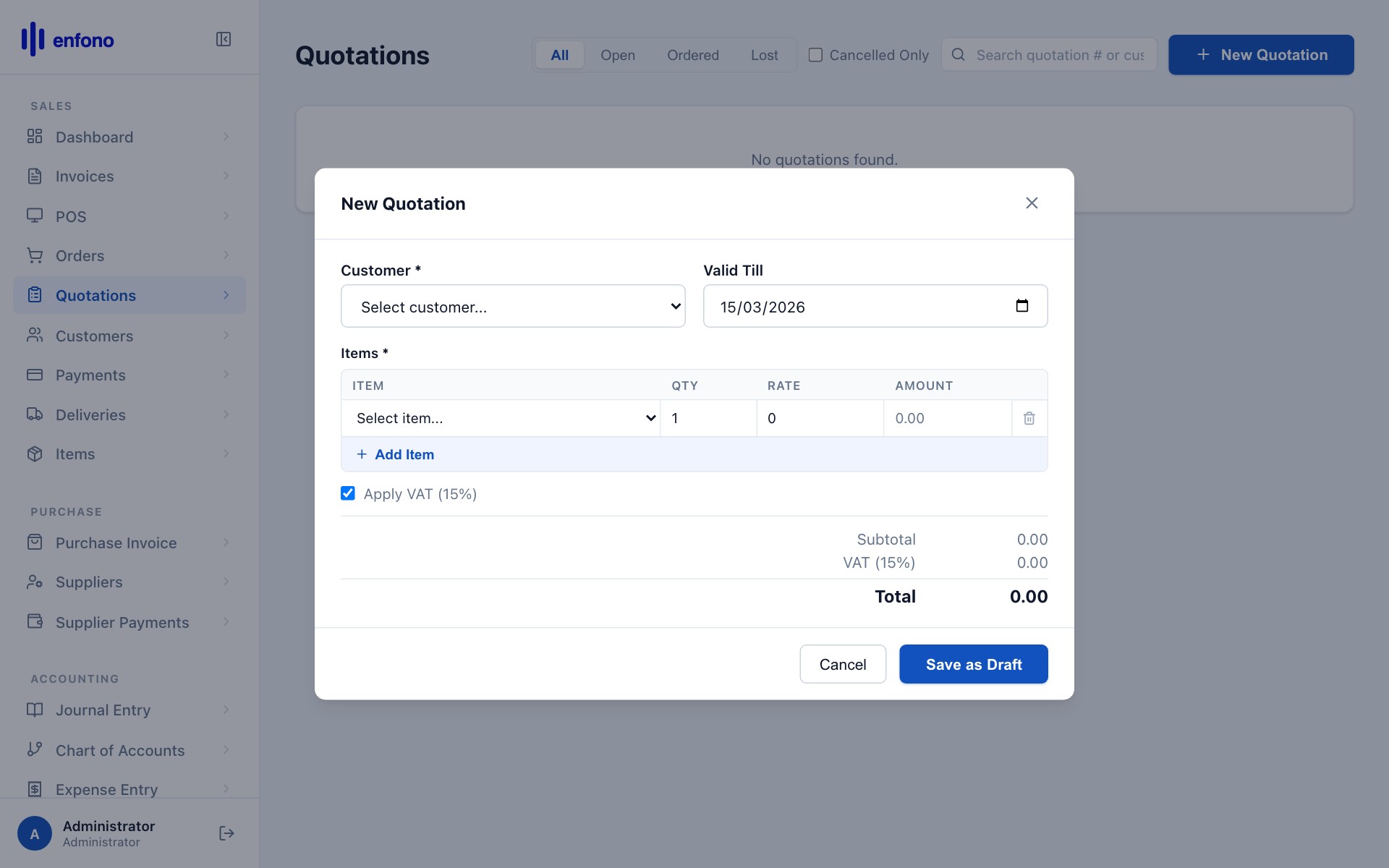
Click + New Quotation. An empty quotation form opens:
Quotation To
Choose Customer (for existing customers in your system) or Lead (for prospects not yet in the system).
Party Name (Customer)
Select the customer from the dropdown. All their details (address, VAT number, payment terms) fill in automatically.
Quotation Date
Defaults to today. Change if you're back-dating or post-dating a quotation.
Valid Till
The expiry date for this quote. After this date the customer can no longer accept it.
Add Items
In the Items table, click Add Row. Select the item from the dropdown. Enter the quantity and price (the system pre-fills from the item's default price).
Taxes
The tax template applies automatically if you've set it up on your items or company. VAT 15% will appear in the taxes section.
Terms & Conditions
Add any payment terms or special conditions that the customer should read before accepting.
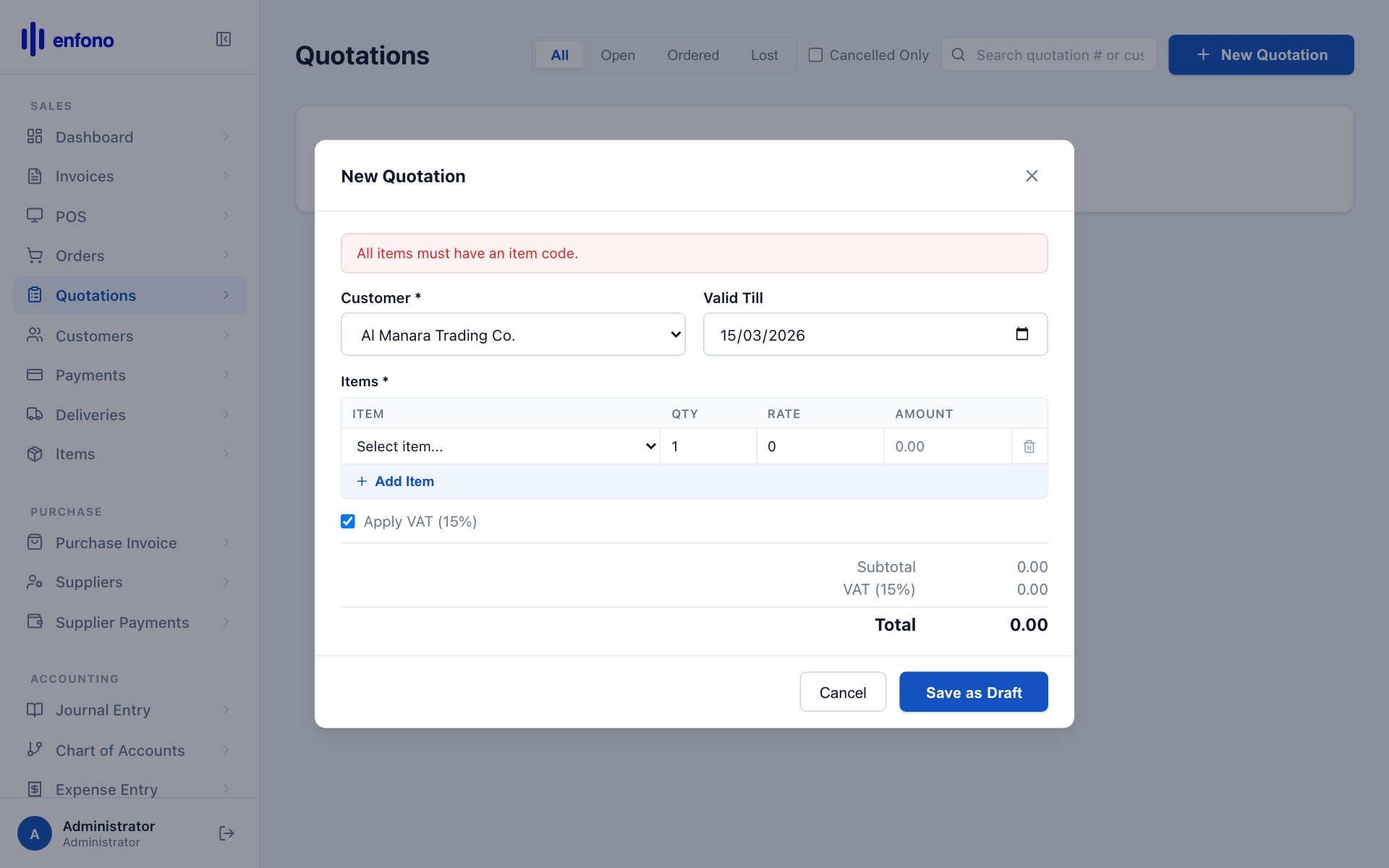
Here is a quotation filled in for two laptops:

Saving and submitting
Click Save first, then Submit. Once submitted the quotation is locked and a PDF can be generated for the customer.
To send the quotation to the customer: click Email on the submitted document. Fateh will open a compose window with the PDF attached.
Quotations list with data
Converting a quotation to an invoice
Open the submitted quotation
Find it in the Quotations list and click on it.
Click 'Make'
At the top of the document click the Make button.
Choose Sales Invoice or Sales Order
Select Sales Invoice to bill the customer directly, or Sales Order if you need to process fulfillment first.
Review and submit
All items and customer details carry over automatically. Review, adjust if needed, and click Submit.