Sales Invoices
Issue tax-compliant invoices to your customers. Fateh automatically calculates VAT and — for Saudi Arabia — submits each invoice to the ZATCA portal.
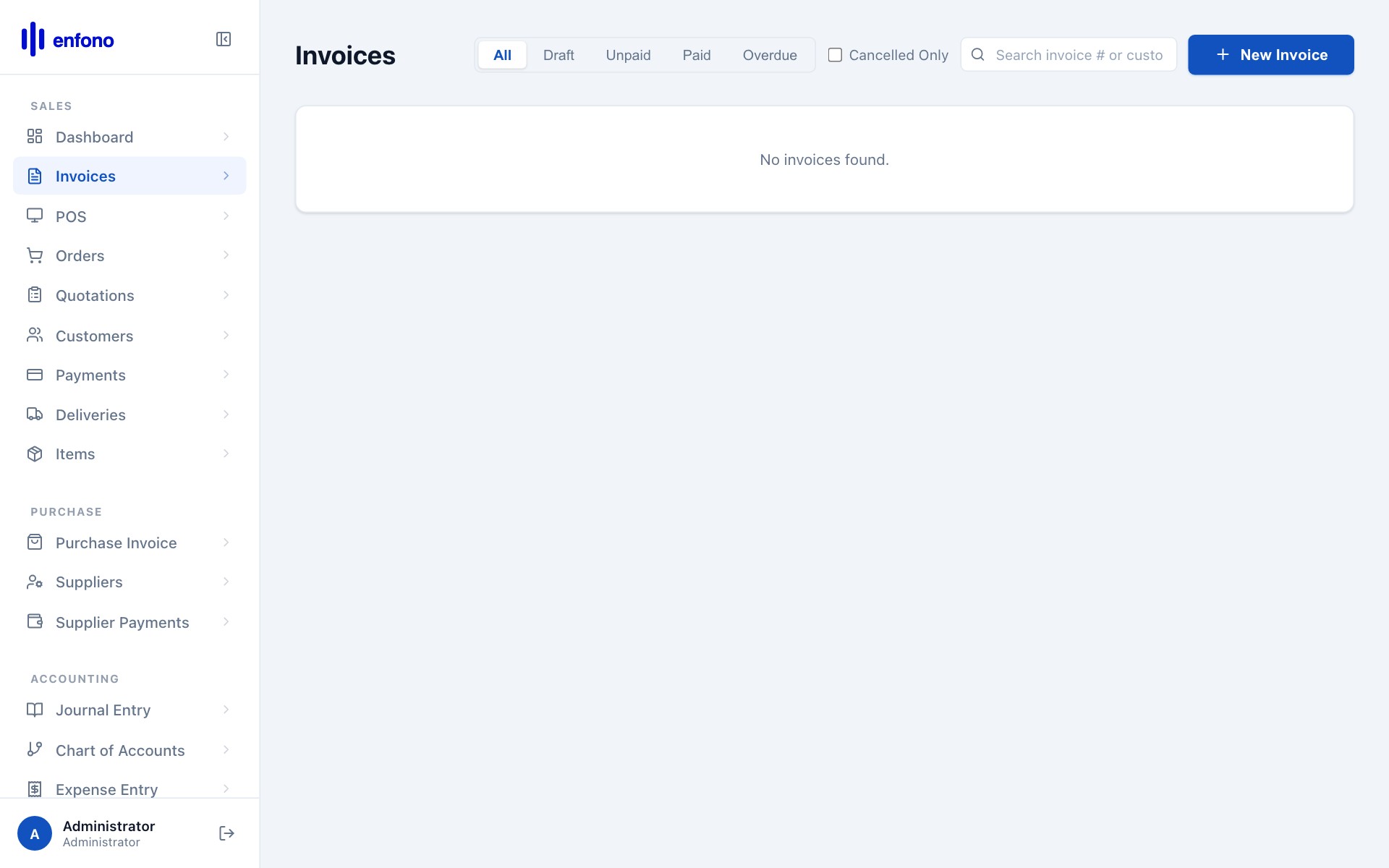
Sales Invoices list
Go to Accounts → Sales Invoice (or Selling → Sales Invoices):
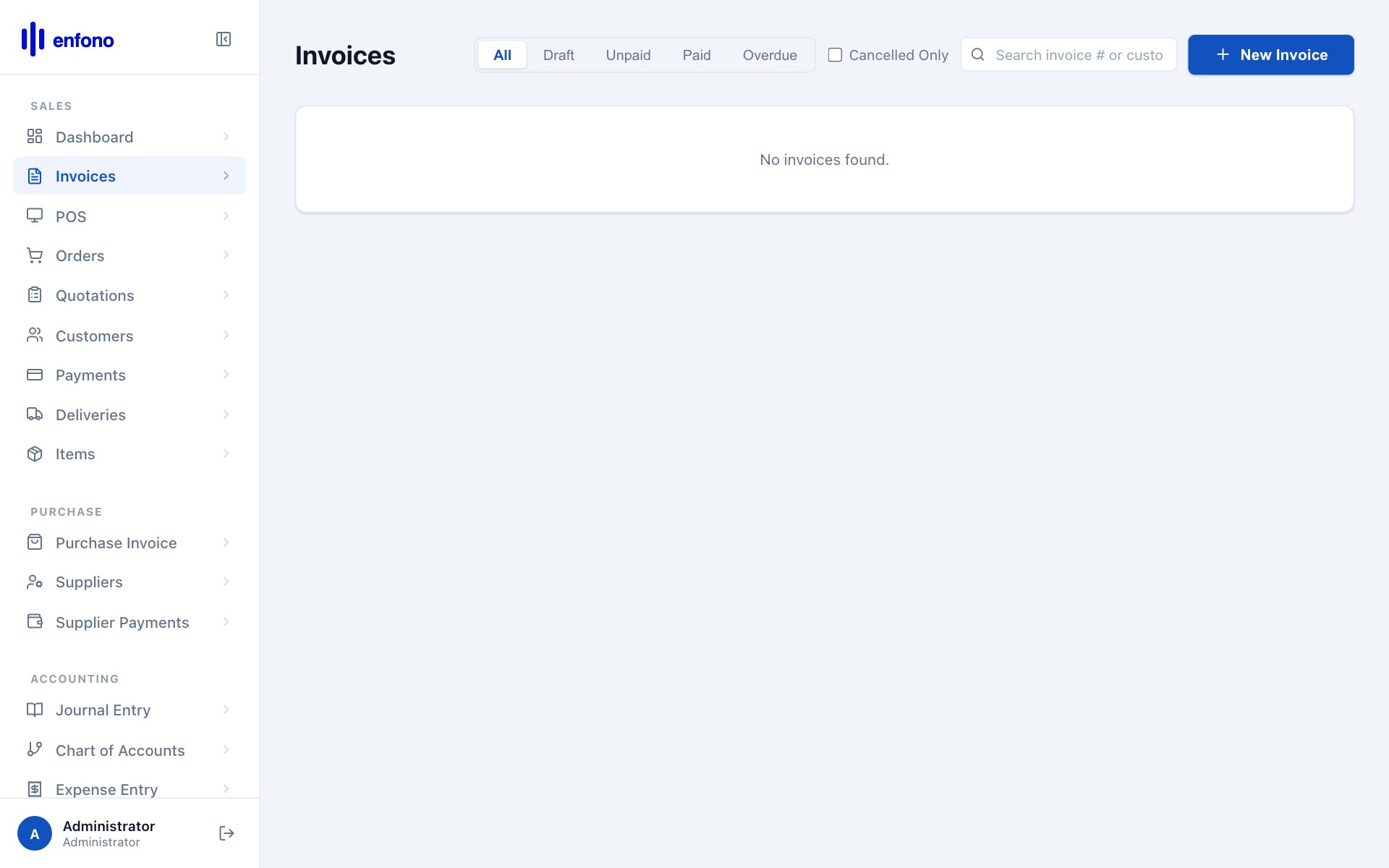
Each row shows: invoice number, customer, date, net amount, VAT, total, and payment status (Unpaid, Paid, Overdue).
Creating a new sales invoice
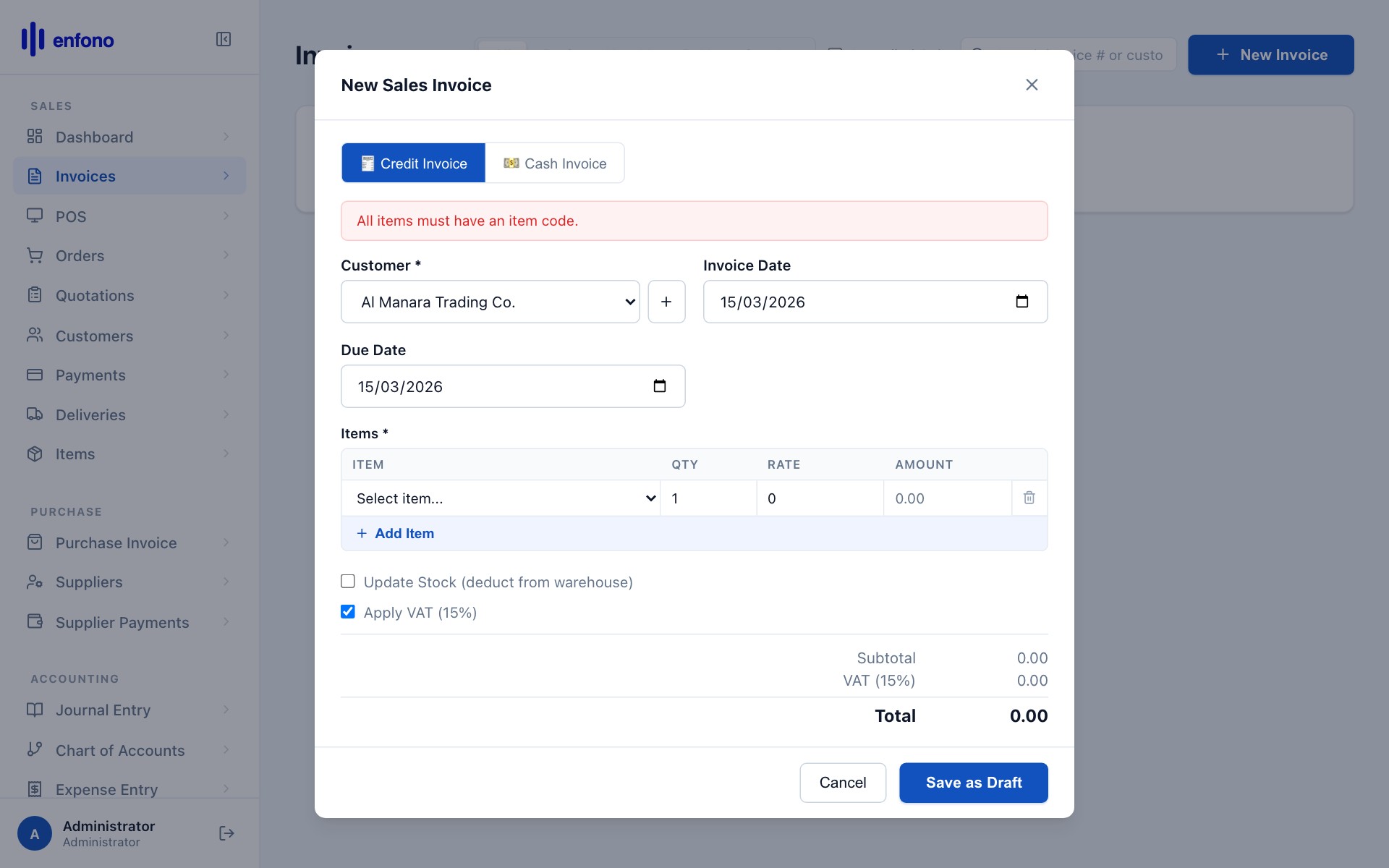
Click + New Sales Invoice. The blank form opens:
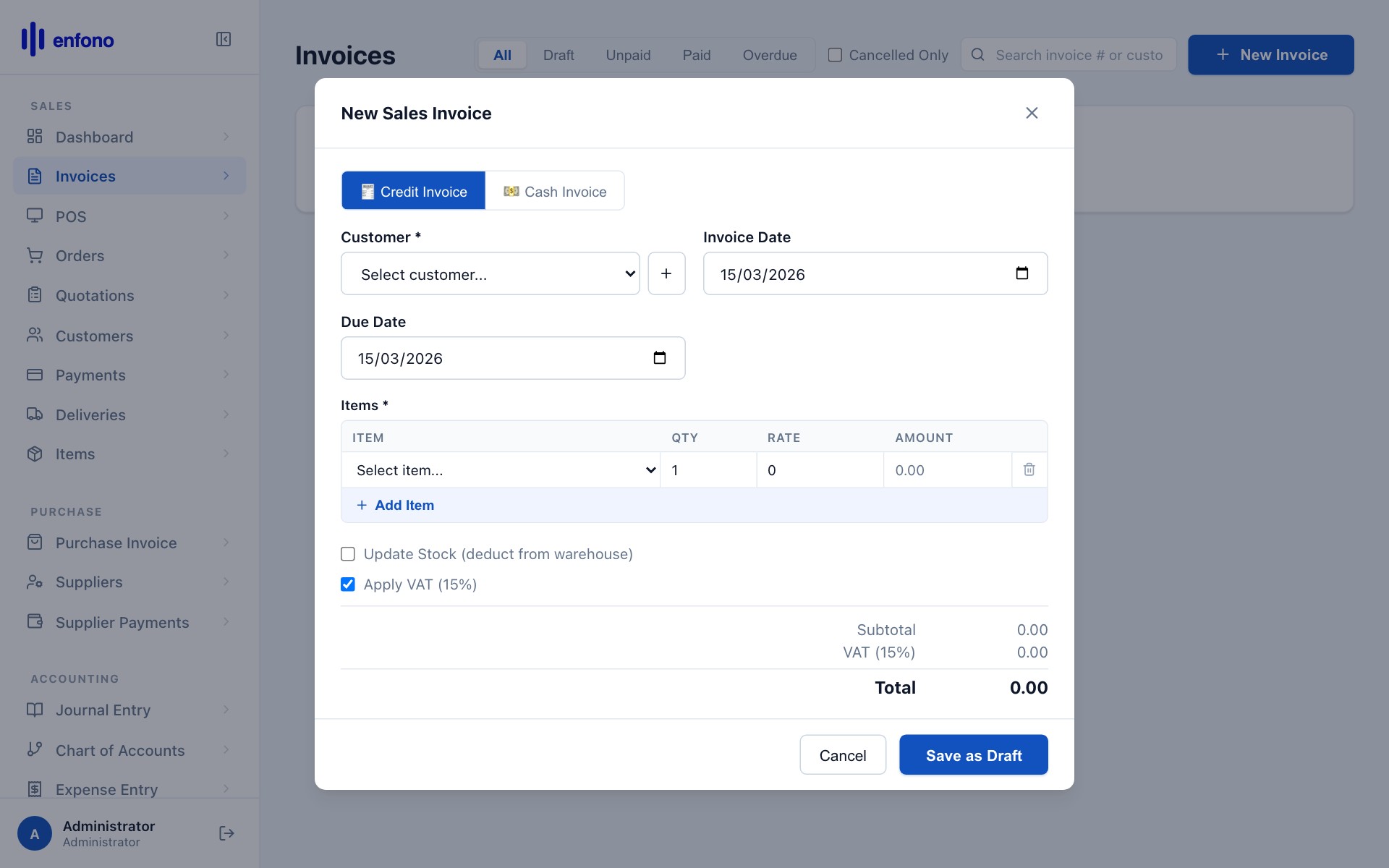
Customer
Select the customer from the dropdown. Their billing address and VAT number fill in automatically.
Posting Date
The invoice date. Defaults to today. Important: this is the date that appears on the PDF and is used for VAT reporting.
Due Date
Payment deadline. If you've set payment terms on the customer (e.g., Net 30), this fills automatically.
Add items
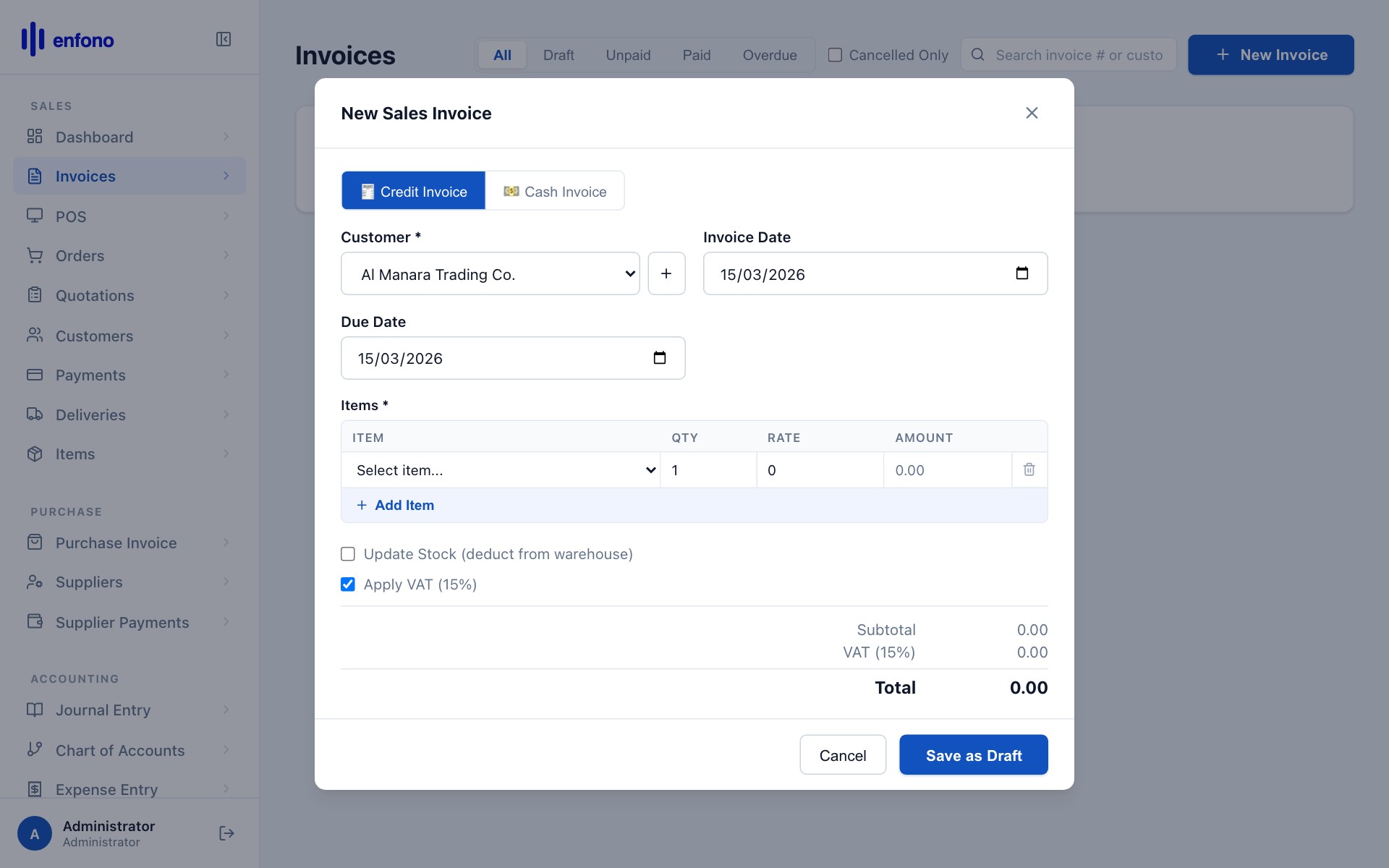
In the Items table, click Add Row. Start typing the item name and select it. Enter the quantity.
Rate
The unit price. Pre-fills from the item's default selling rate. Override here if needed for this specific invoice.
Tax
The taxes section shows the VAT amount. It calculates automatically if your items have a tax template attached. For Saudi Arabia this is typically 15% VAT.
Invoice with one line item added:
VAT calculation
Once you add items, scroll down to the Taxes and Charges section to see the VAT breakdown:
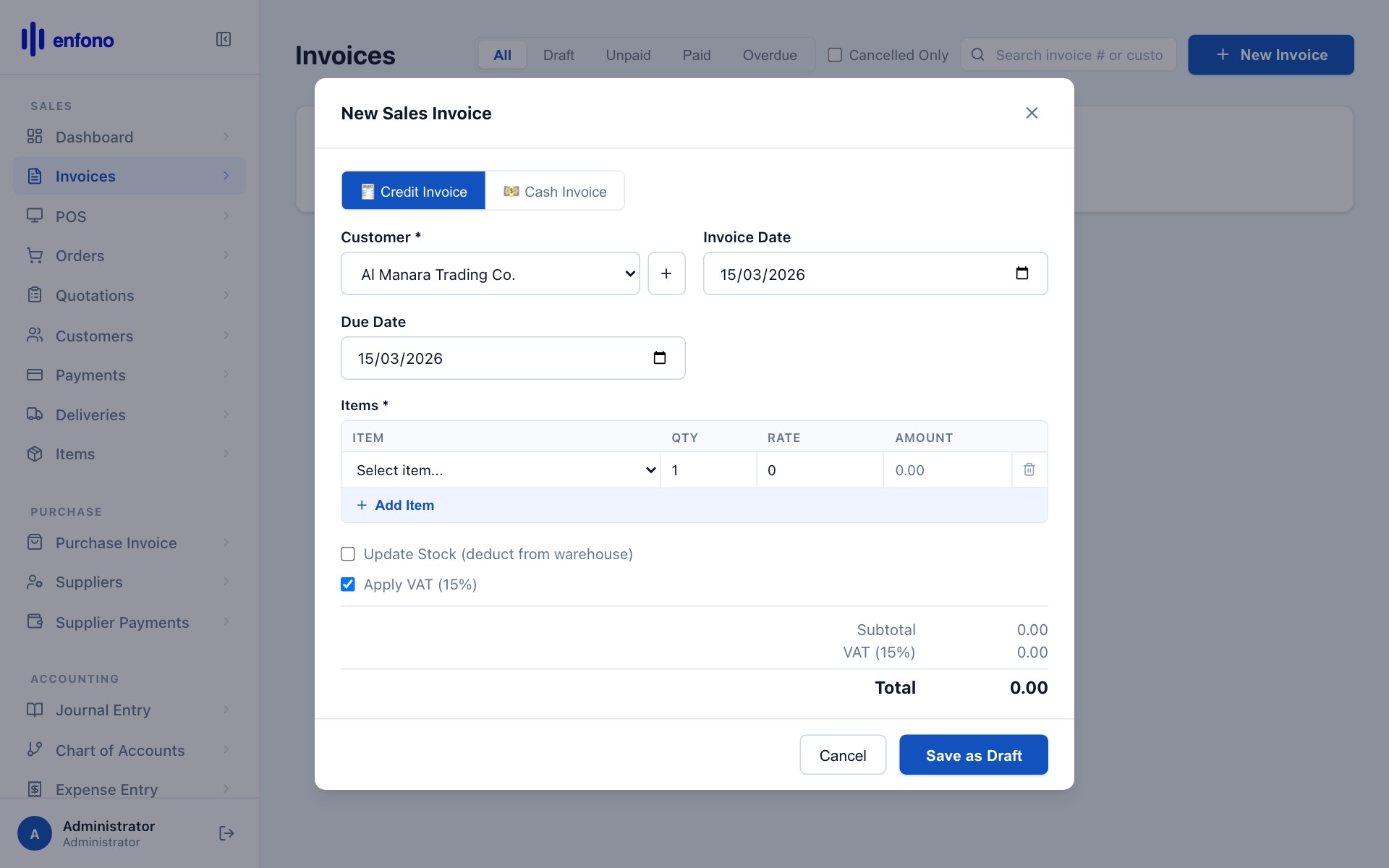
| Line | Description | Amount (SAR) |
|---|---|---|
| Net Total | Total before VAT | 750.00 |
| VAT 15% | Output VAT calculated automatically | 112.50 |
| Grand Total | Amount the customer pays | 862.50 |
Submitting the invoice
Click Save to review, then Submit to finalise. Once submitted:
- The invoice is locked (no edits allowed — you must cancel and amend if corrections are needed)
- Fateh generates the ZATCA XML and submits it to the ZATCA portal
- The QR code appears on the printed invoice
- The invoice shows ZATCA clearance status (Cleared or Reported)
Invoices list with data
Printing & sending the invoice
Click Print
On the submitted invoice, click the Print button to preview the PDF.
Choose a print format
Fateh comes with standard Arabic and English formats. Your administrator may have set up a custom branded format.
Email to customer
Click Email on the invoice. A compose window opens with the PDF automatically attached.
Download PDF
Click the download icon to save the PDF locally if you need to share it another way.
Cancelling or amending an invoice
You cannot edit a submitted invoice. To make corrections:
- Open the invoice and click Cancel. This creates a reversal entry.
- Click Amend to create an editable copy with the same number (appended with -1).
- Make your changes and Submit the amended invoice.