Payments Received
Record payments from customers and match them against outstanding invoices to keep your accounts up to date.
Payments list
Go to Accounts → Payment Entry (or Selling → Payments):
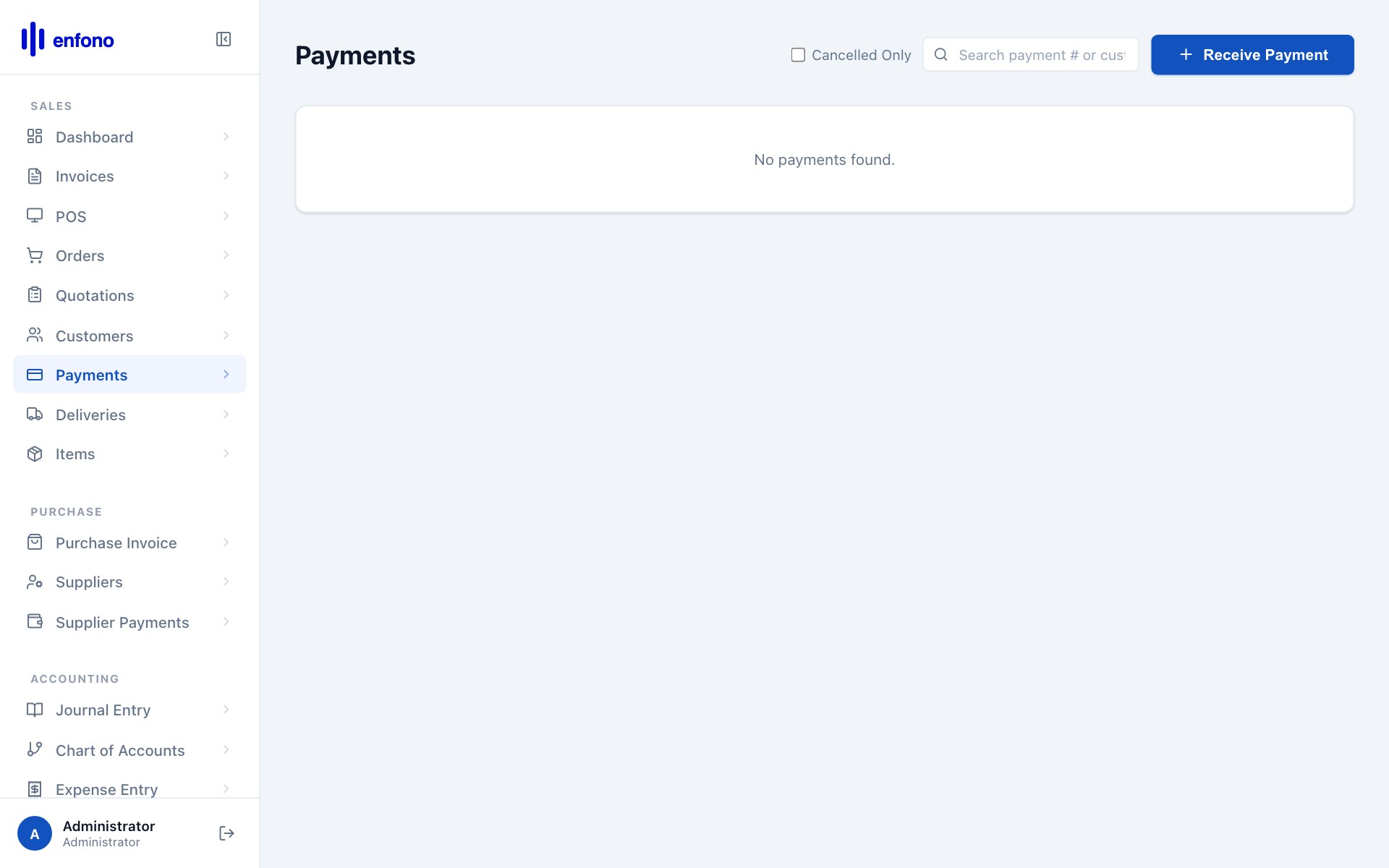
Each row shows: payment number, customer, date, amount, mode of payment, and whether it is reconciled against an invoice.
Recording a payment against an invoice
The fastest way is directly from the invoice:
Open the invoice
Go to Sales Invoices, find the unpaid invoice, and open it.
Click 'Make Payment'
At the top of the submitted invoice click Make Payment. A payment entry form opens pre-filled with the customer and outstanding amount.
Mode of Payment
Select how the customer paid: Bank Transfer, Cash, Cheque, or Credit Card.
Bank Account
Select the bank account that received the money.
Reference Number
Enter the bank reference, cheque number, or transfer ID. This is important for bank reconciliation.
Payment Date
When the money was actually received. Important for cash flow reporting.
Click Save then Submit
The payment is recorded and the invoice status changes to Paid.
Creating a standalone payment
You can also record a payment without starting from an invoice:
Click + New Payment Entry
From the Payments list, click the New button.
Payment Type
Select Receive (money coming in from a customer).
Party Type → Customer
Select Customer as the party type.
Party
Select the customer from the dropdown.
Amount
Enter the payment amount.
Allocate to invoices
In the Outstanding Invoices table at the bottom, tick the invoice(s) this payment covers. Click Allocate.
Submit
Click Submit to finalise the payment.
Unallocated payments
If a customer pays in advance before an invoice exists, record the payment and leave it unallocated. When you later create the invoice, go to Make Payment from the invoice and Fateh will show the existing unallocated amount to apply.
Payment modes
| Mode | When to use |
|---|---|
| Bank Transfer (SADAD / IBAN) | Most common — wire transfers from customer |
| Cash | Physical cash received at your office |
| Cheque | Paper cheques — enter cheque number as reference |
| Credit Card | Card payments through a POS terminal |
| STC Pay / Mada | Add custom payment modes in Settings if needed |