Items (Products & Services)
Items are the products and services you buy and sell. Every invoice and quotation is built from items. Create your items library before you start transacting.
Opening the Items list
Go to Stock → Items in the left menu. You'll see all your existing items:

The table shows each item's name, item code, group, and unit of measure. When you're just getting started the list will be empty.
Creating a new item — step by step
Click the + New Item button at the top right. An empty item form opens:
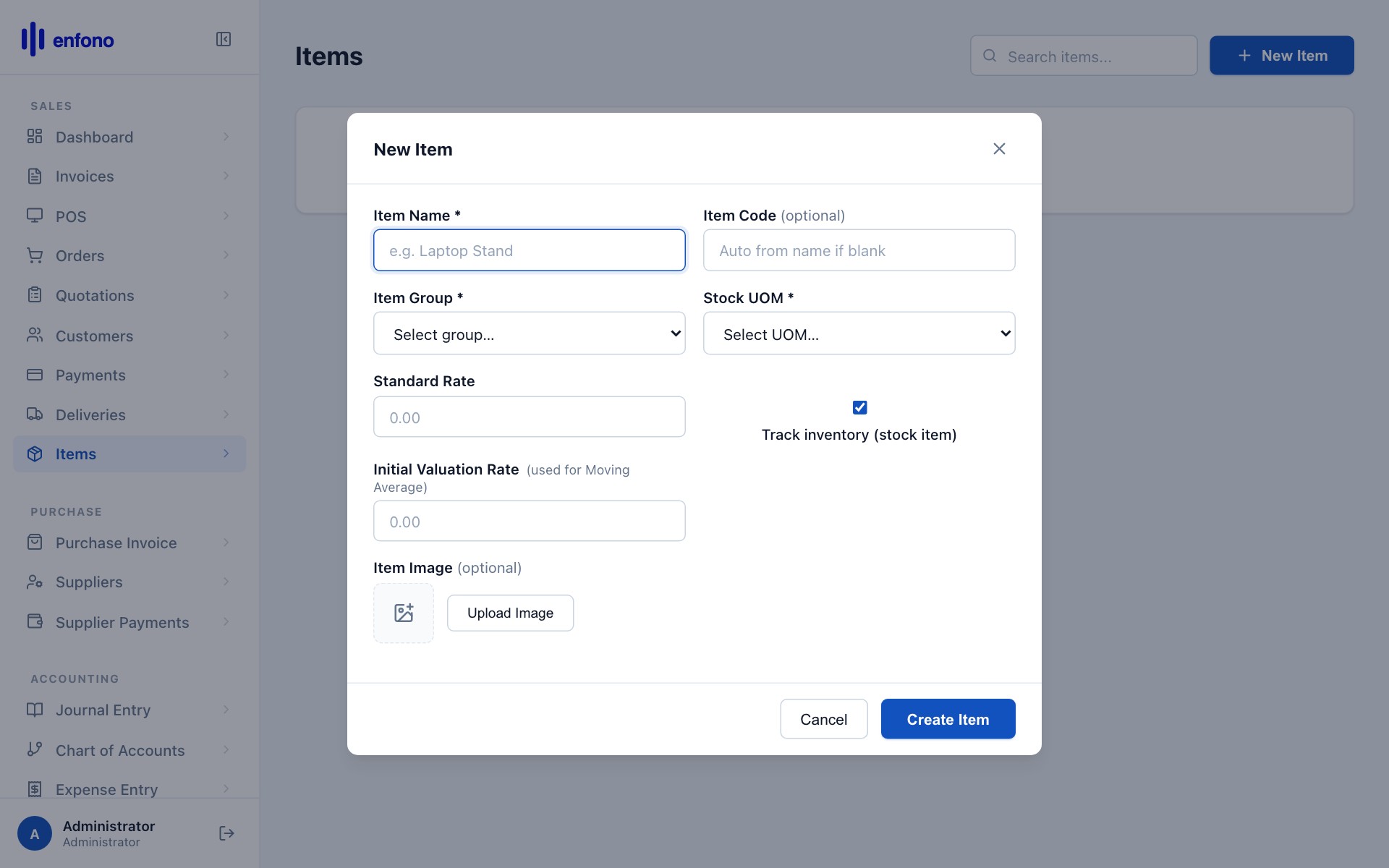
Item Name
Enter a clear, descriptive name. This is what you and your customers will see on invoices. Example: Office Chair - Executive or IT Consulting (per hour).
Item Code
A short unique code for this item. It appears on print formats and helps you find items quickly. Example: CHAIR-001, CONSULT-HR. If left blank Fateh will auto-generate one.
Item Group
Choose a category: Products for physical goods, Services for consultancy or labour, or create your own group. Groups help in reporting.
Unit of Measure (UOM)
How is this item counted? Common choices: Nos (pieces/units), Kg, Litre, Box, Hour, Day.
Is Stock Item
Enable this toggle if you physically track inventory levels (e.g., chairs in a warehouse). Leave it off for services — there is no physical stock to track.
Standard Selling Rate
Set the default price you charge customers. This pre-fills on invoices but can be overridden per transaction.
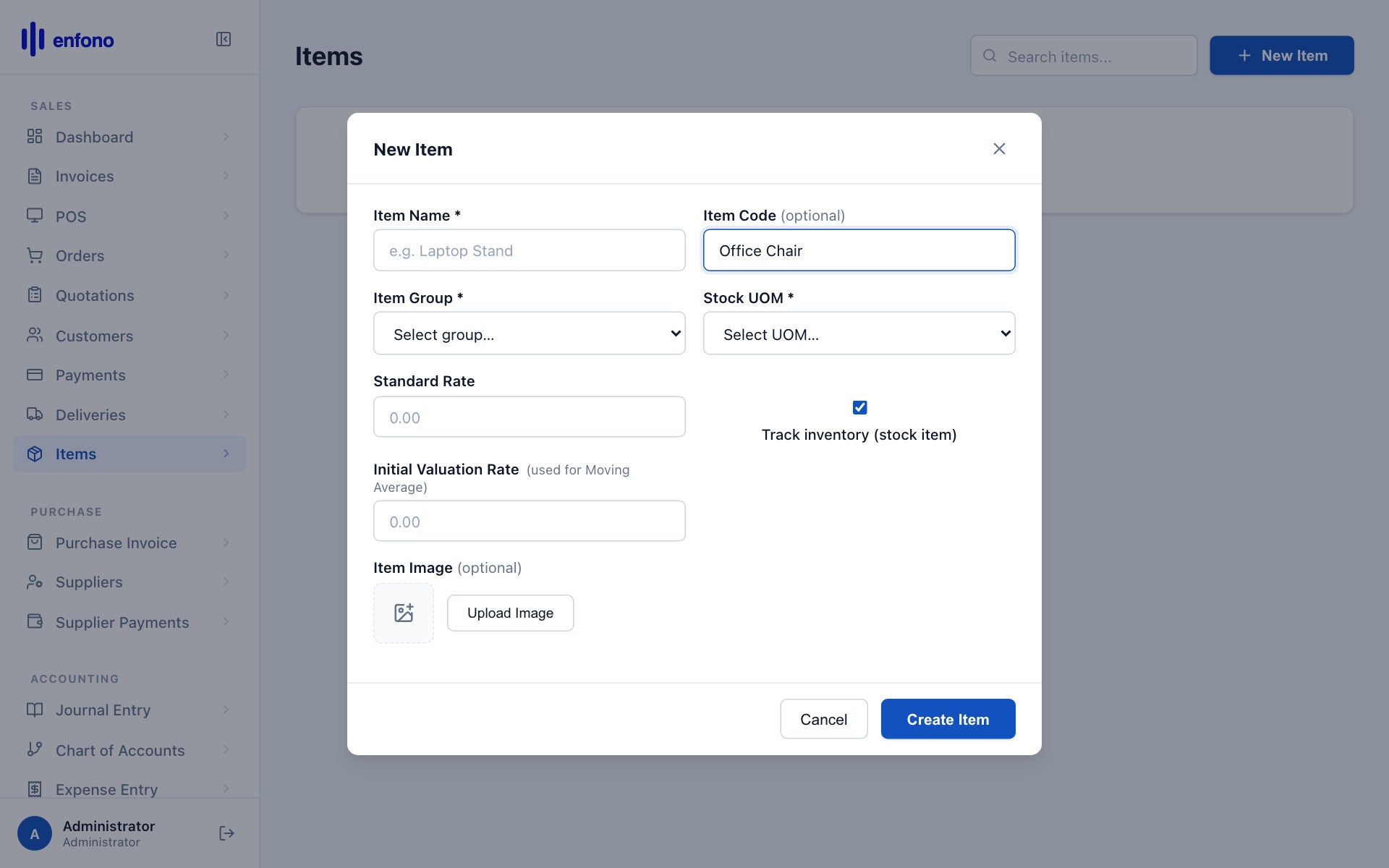
Here's the form filled in for an office chair:
Saving the item
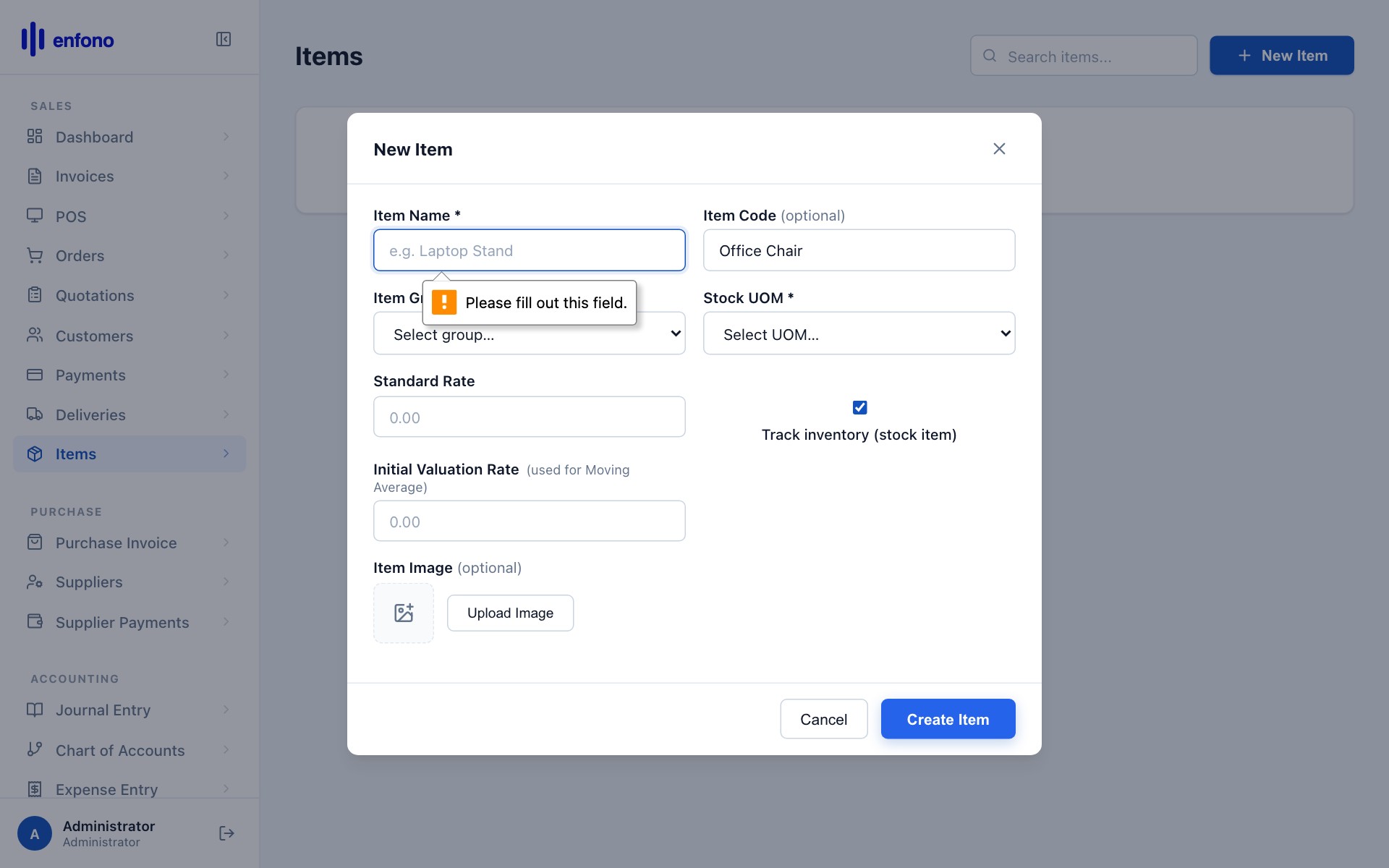
Click Create Item (or Save). The item is created and you are taken to its detail page:
From the item detail page you can:
- Edit any field and click Save
- View stock ledger — every movement in and out of stock
- Set multiple selling rates for different price lists
- Attach files (product images, spec sheets)
Items list after adding items
After adding a few items your list looks like this:
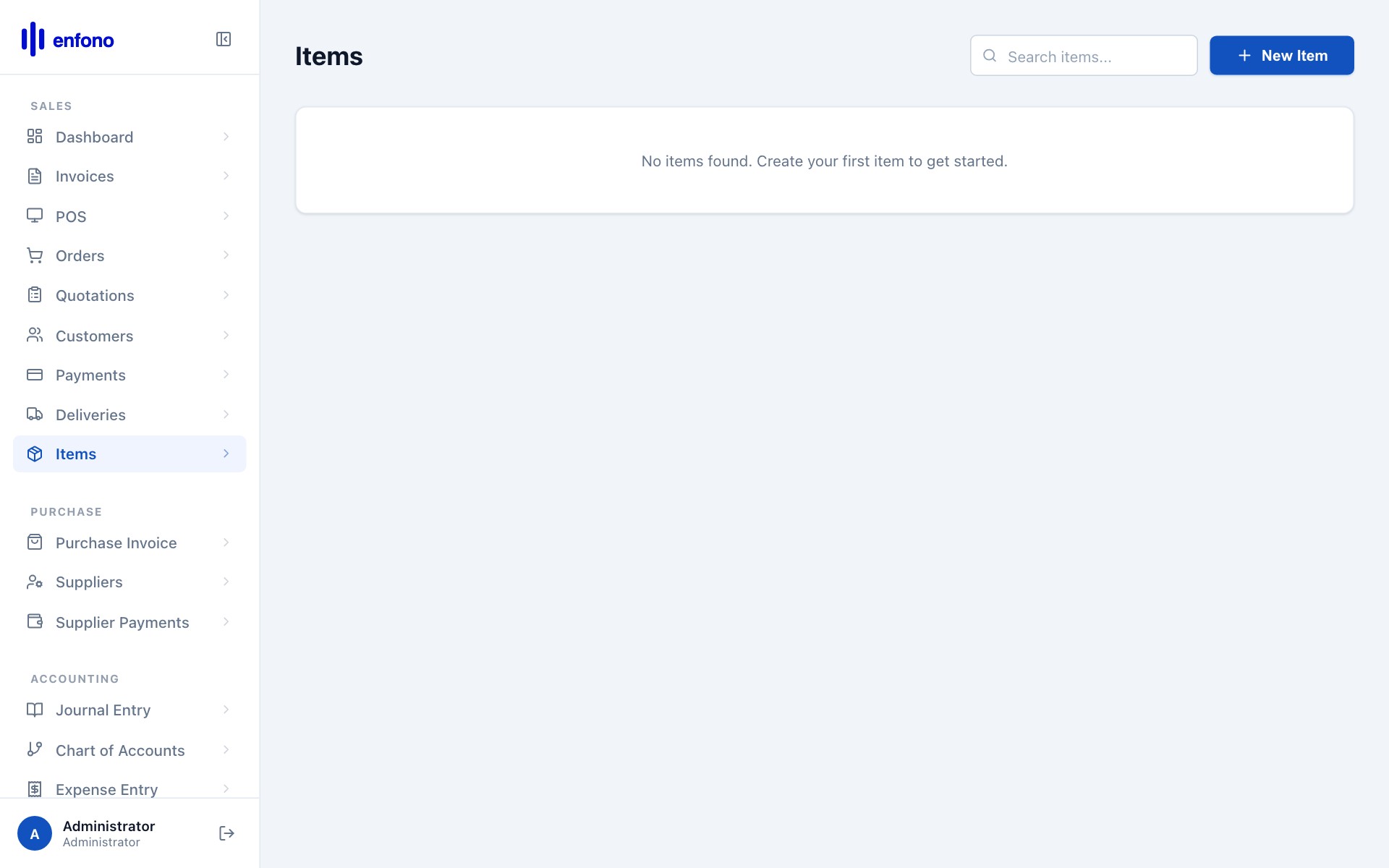
You can use the search bar at the top of the list to filter by name or code.
Item groups & categories
Grouping items makes reports more useful. Typical groups for a trading company:
| Group | Example items |
|---|---|
| Products | Computers, Furniture, Office Supplies |
| Services | Consulting, Installation, Support |
| Software | Licenses, SaaS subscriptions |
| Raw Materials | Steel, Fabric, Chemicals (if you manufacture) |