Sales Orders
Sales Orders confirm a customer's intent to purchase before goods are shipped or work begins. They act as the bridge between a quotation and a delivery or invoice.
Sales Orders list
Go to Selling → Sales Order:
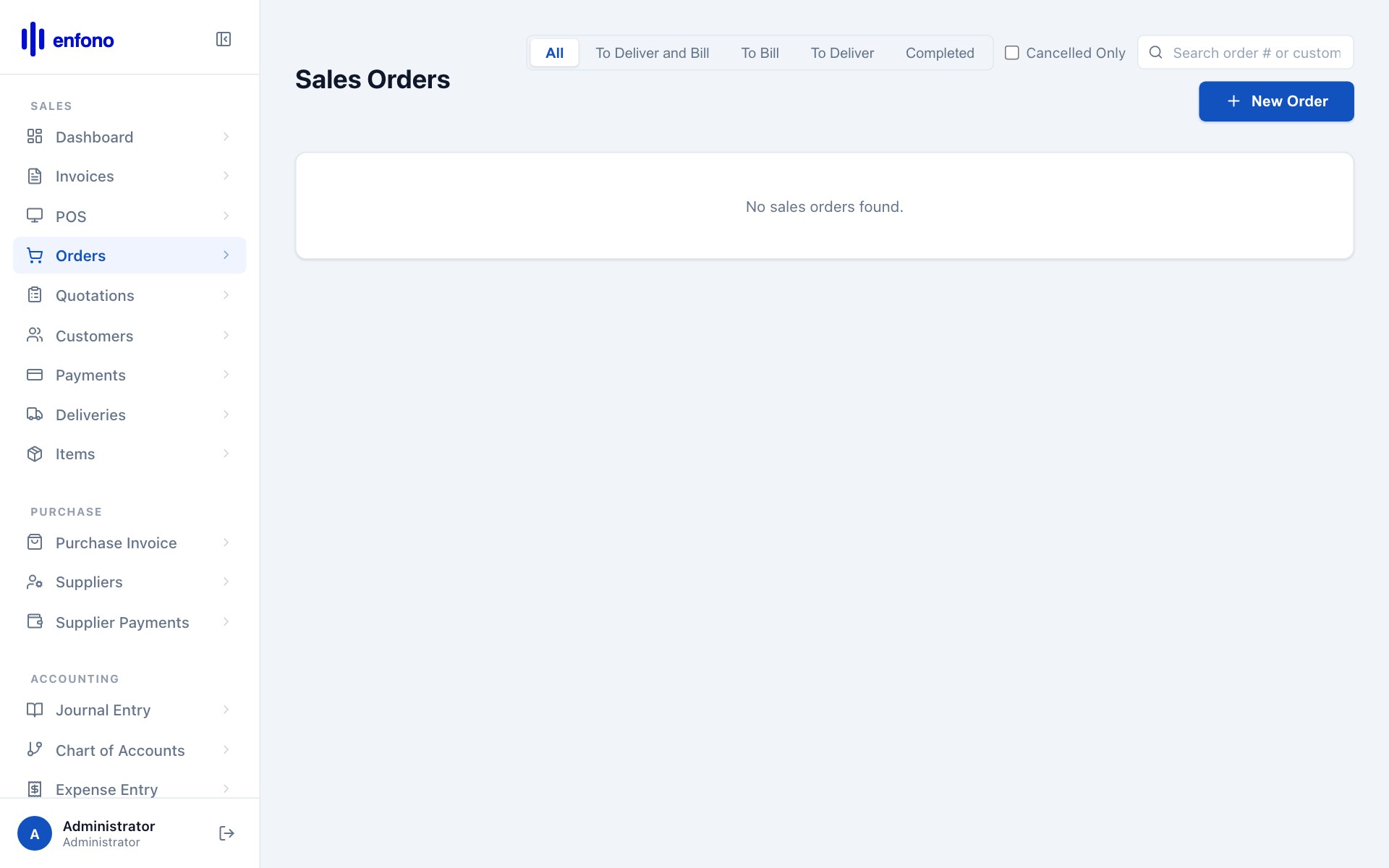
Sales Orders list — all open and fulfilled orders
Creating a new Sales Order
Click + New Sales Order. The form is similar to a quotation:
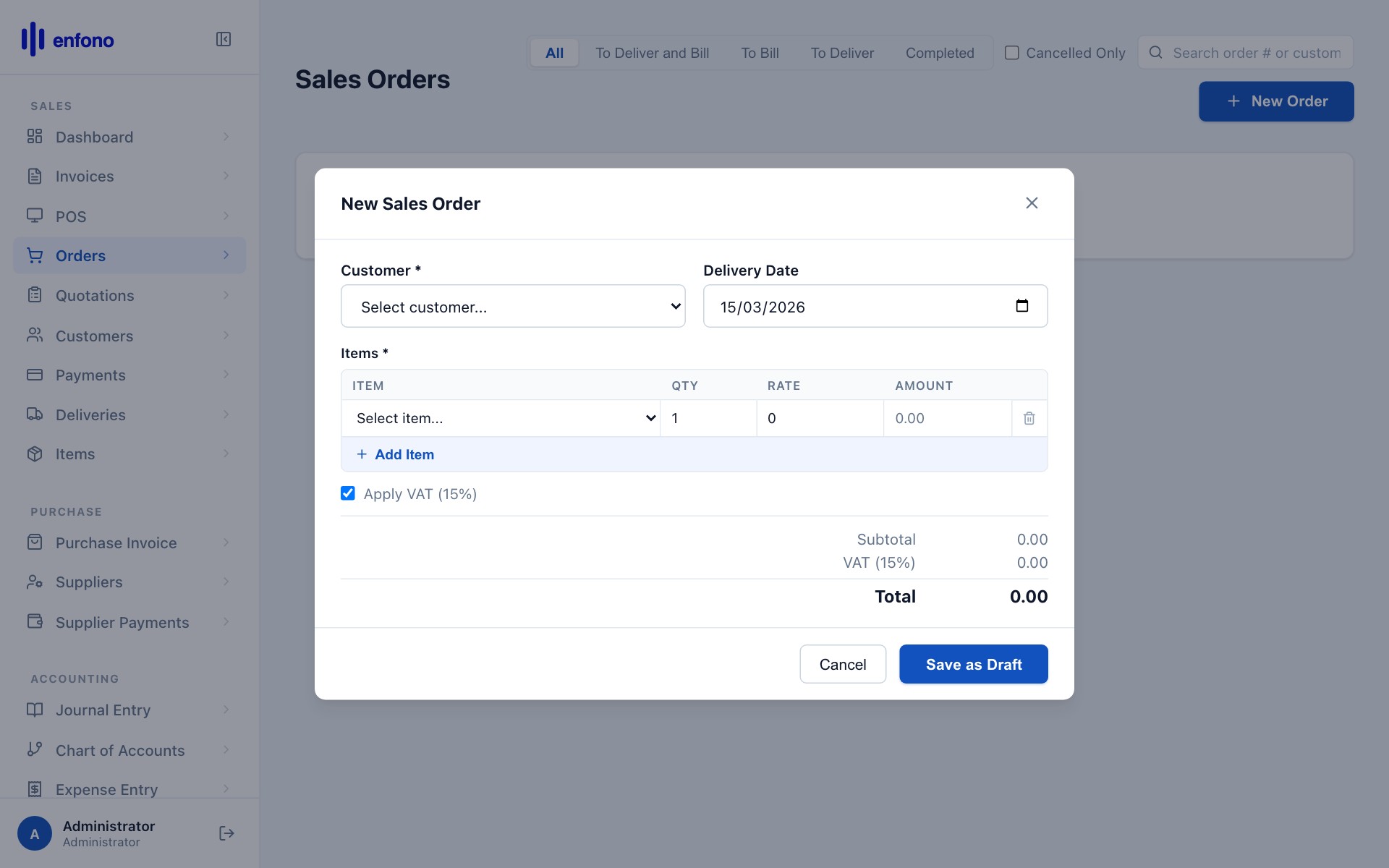
New Sales Order form
1
Customer
Select the customer. Their details populate automatically.
2
Delivery Date
When you plan to deliver the goods or complete the service.
3
Add Items
Add the ordered items with quantities and rates.
4
Submit
Click Submit to confirm the order. Stock is reserved automatically for stock items.
From Order to Invoice
Once a sales order is submitted and the goods are delivered:
1
Open the Sales Order
Find it in the list and click to open.
2
Make → Delivery Note
Create a delivery note if you need to track physical shipment.
3
Make → Sales Invoice
Create the final invoice. All items carry over. Submit to bill the customer.
Sales Orders are optional. Many businesses go directly from Quotation → Sales Invoice, especially for services. Use orders when you need to track delivery or manage warehouse stock.